AI assistants (MCP server)
OKR.ai runs its own MCP server, so the AI assistant you already use can work with your OKRs: check in on key results, draft and add objectives, see how your team is doing, cascade goals to your reports and approve their OKRs. It acts as you, with exactly the access you have in the app.
This page is about assistants using OKR.ai. For OKR.ai reading your tools (Jira, GitHub, Notion…) as context, see MCP & context.
How it works
- The server is part of the app at
http://localhost:3000/api/mcp. There’s nothing extra to install or run. - Each person creates a personal token in the app. The assistant sends it with every request, so it sees and changes only what that person can.
- Assistants that speak HTTP (Claude Code, Cursor, VS Code) connect to the URL directly. Assistants that start a local command (Claude Desktop, Codex) use a small bridge script that ships with OKR.ai and relays to the app.
- Answers come back as compact Markdown with progress bars and tables. Assistants that support MCP Apps also show a visual card.
Set it up
- Start OKR.ai and sign in.
- Open AI assistants (MCP) in the left rail (the
>_icon), or go to localhost:3000/?panel=mcp. - Name the token after your assistant and choose Create token. Copy it now; it isn’t shown again.
- Pick your assistant. The panel shows its setup with your token, this server’s URL and the bridge path already filled in. Copy it and follow the steps below.
Or do it all from a terminal (or let your assistant run it): after signing in once, one command makes the token and writes the setup.
$ npx okr-ai connect claude-code --email you@company.com
# or claude-desktop, codex, cursor, vscode. --print shows the setup without writing it.
Claude Desktop
In Claude Desktop, open Settings → Developer → Edit Config, add OKR.ai to claude_desktop_config.json, then restart Claude.
{
  "mcpServers": {
    "okr": {
      "command": "/usr/local/bin/node",
      "args": ["/path/to/okr-ai/scripts/okrai-mcp.mjs"],
      "env": {
        "OKRAI_URL": "http://localhost:3000",
        "OKRAI_MCP_TOKEN": "okr_…"
      }
    }
  }
}
Use the panel’s copy: it uses the full path to the Node.js you run OKR.ai with, because Claude Desktop doesn’t see your shell’s PATH (for example with nvm). Commands show up under the + button → okr.
Claude Code
$ claude mcp add --transport http okr http://localhost:3000/api/mcp \
    --header "Authorization: Bearer okr_…"
Add --scope user to have it in every project. Commands appear as /mcp__okr__my-okrs, /mcp__okr__add-okr and so on; type /okr to filter them.
Codex (OpenAI)
Add this to ~/.codex/config.toml. It works for the Codex CLI and the Codex IDE extension.
[mcp_servers.okr]
command = "/usr/local/bin/node"
args = ["/path/to/okr-ai/scripts/okrai-mcp.mjs"]
env = { OKRAI_URL = "http://localhost:3000", OKRAI_MCP_TOKEN = "okr_…" }
Cursor
Add this to ~/.cursor/mcp.json, or to .cursor/mcp.json in a project:
{
  "mcpServers": {
    "okr": {
      "url": "http://localhost:3000/api/mcp",
      "headers": { "Authorization": "Bearer okr_…" }
    }
  }
}
VS Code (GitHub Copilot)
Add this to .vscode/mcp.json, or run MCP: Add Server from the command palette:
{
  "servers": {
    "okr": {
      "type": "http",
      "url": "http://localhost:3000/api/mcp",
      "headers": { "Authorization": "Bearer okr_…" }
    }
  }
}
ChatGPT
ChatGPT connects only to MCP servers on the public internet, so it can’t reach an OKR.ai running on your machine. Remote MCP with OAuth sign-in is planned. Until then, use Codex, which runs locally.
Any other MCP client
Point it at http://localhost:3000/api/mcp (Streamable HTTP) with the header Authorization: Bearer okr_…. If it only starts commands, run the bridge:
$ OKRAI_URL=http://localhost:3000 OKRAI_MCP_TOKEN=okr_… node scripts/okrai-mcp.mjs
From a clone of the repository, npm run mcp runs the same script.
Commands
Built-in commands (MCP prompts) give the assistant a ready-made brief for the common jobs. Arguments are optional unless marked.
| Command | What it does | Example |
|---|---|---|
my-okrs | Where your OKRs stand, what’s off track and the next step | /mcp__okr__my-okrs |
my-team | Your reports at a glance: who’s behind, who has no OKRs, who’s waiting for approval | /mcp__okr__my-team |
add-okr idea (required) | Turns an idea into one objective with 2–4 measurable key results, linked to your manager’s, then adds it when you confirm | /mcp__okr__add-okr make onboarding self-serve |
checkin update | Logs progress from a plain-words update, or walks you through each key result | /mcp__okr__checkin closed 3 deals, NPS is 41 |
add-report who (required) | Adds someone to your team | /mcp__okr__add-report Priya Rao, priya@acme.com, backend engineer |
align | Pull: accept what your manager proposed and fill the gaps so your OKRs ladder up | /mcp__okr__align |
cascade focus | Push: splits your OKRs across your reports by role, shows the plan, then proposes it | /mcp__okr__cascade |
review-team | Reviews your reports’ acknowledged OKRs and approves the ones you pick | /mcp__okr__review-team |
at-risk | Off-track key results across you and your team, with likely causes and actions | /mcp__okr__at-risk |
status-report audience | A paste-ready status update under 180 words | /mcp__okr__status-report the exec team |
org root | The org chart around you, or from top | /mcp__okr__org top |
The examples use Claude Code’s names. In Claude Desktop, pick the command from + → okr; other assistants list them in their own prompt or slash menu.
Or just ask
You don’t need the commands. The assistant picks the right tools from plain requests:
- “How are my OKRs doing?”
- “We closed 3 more deals this week, log it.”
- “Add an OKR to cut time to first value under 10 minutes, aligned with Dana’s growth objective.”
- “Show Priya’s OKRs.” · “Who on my team hasn’t acknowledged yet?”
- “Split my OKRs across my team.” · “Approve Rae’s and Sam’s OKRs.”
- “Mark the pricing-page initiative done.” · “Archive the hiring objective.”
For anything bigger than a check-in (adding objectives, cascading, approving, acknowledging, removing people) the assistant shows a short draft and asks before it saves.
What answers look like
Answers are short: a headline, then only what matters. Tool results are compact Markdown, so they read well in any assistant:
Logged 24 min ✓ — 20% → 60% (+40 pts); objective Make onboarding self-serve 20% → 60%.

Median time to first OKR
████████████░░░░░░░░ 60% · 24 / 10 min (from 45)

Recent check-ins
- 2026-10-16 · 24 — New import wizard shipped
Visual cards
Assistants that support MCP Apps (Claude, VS Code, Goose and others) also render a card for the overview, OKRs, team, key result and org chart answers. Cards follow the assistant’s light or dark theme, run in a sandbox with no network access, and clicking a person on a team card asks the assistant about them.
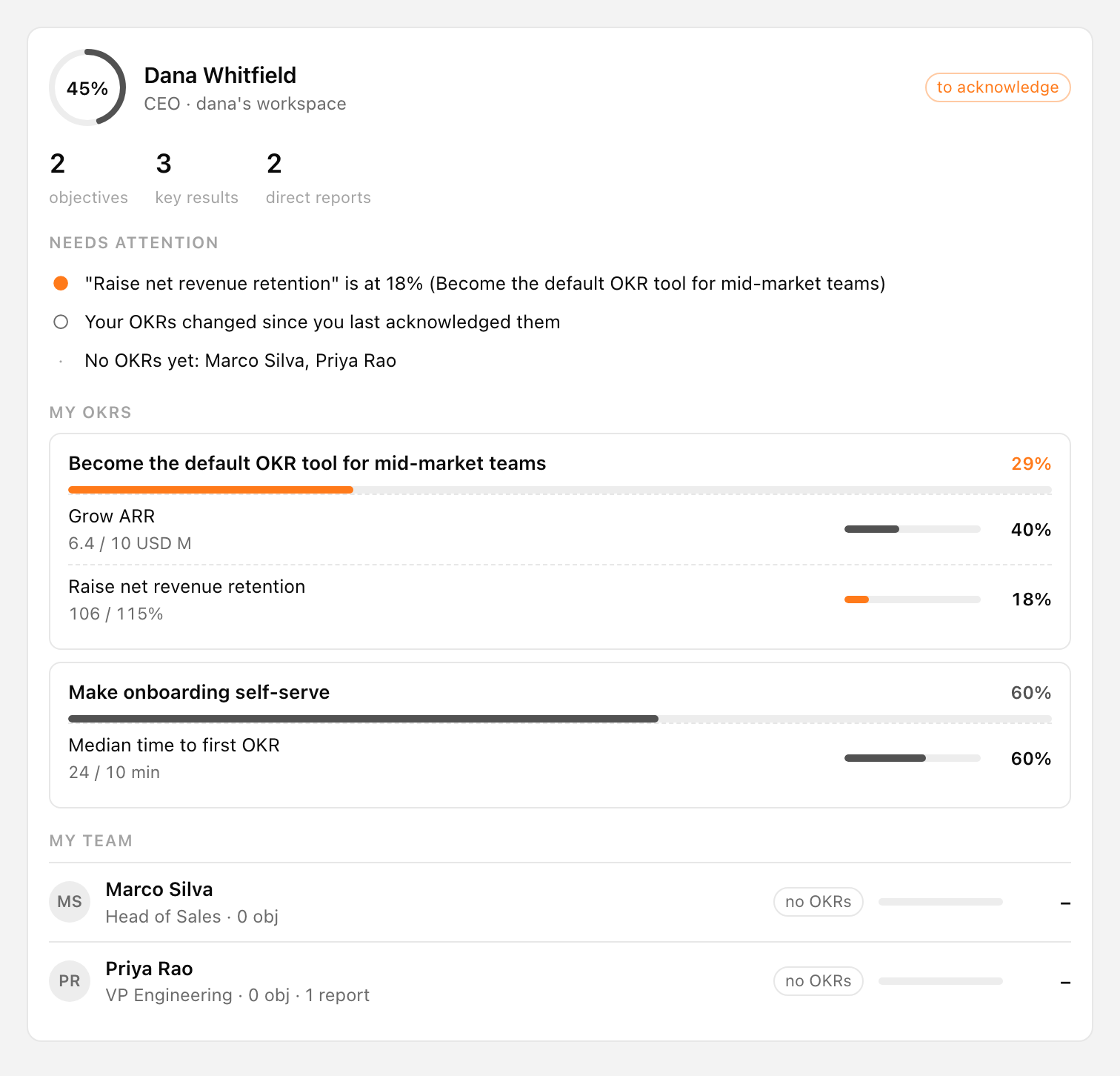
get_overview.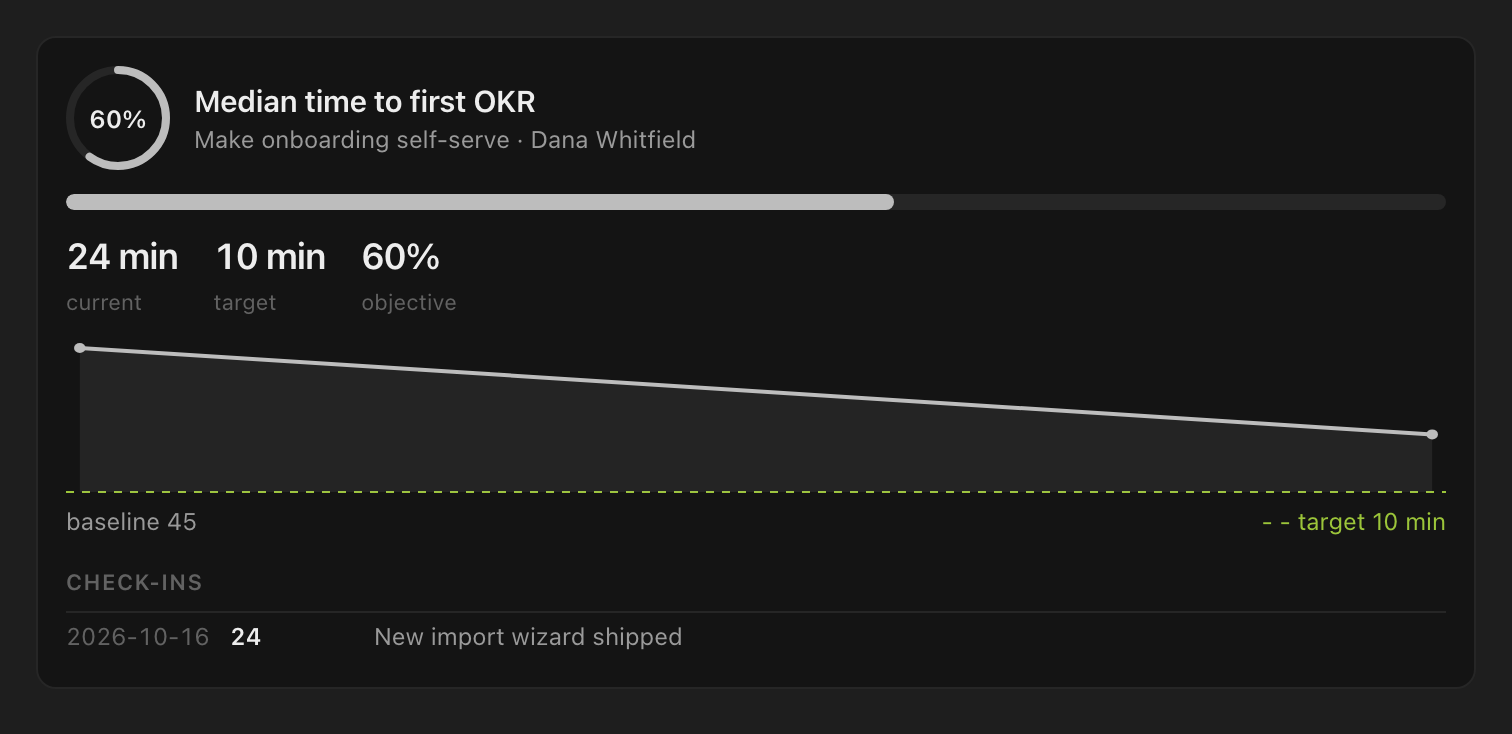
Tools
The assistant uses these tools. Each goes through the same checks as the app.
| Area | Tools |
|---|---|
| Overview & reading | get_overview, get_okrs, get_team, get_key_result, get_org_chart, find_people, get_workspace_context |
| Objectives & key results | create_objective, update_objective (also accepts or archives), delete_objective, add_key_result, update_key_result, delete_key_result |
| Check-ins & initiatives | log_progress, edit_checkin, delete_checkin, add_initiatives, update_initiative, delete_initiative |
| Review & cascade | acknowledge_my_okrs, approve_okrs, delegate_objectives |
| People | add_report, update_person, remove_person, import_team_csv (admins; previews first) |
| History | list_schedules, create_schedule, capture_snapshot |
People can be named the way you’d say them: “me”, a first name, a full name or an email. If a name matches more than one person, the assistant asks which one.
Deleting tools are marked destructive, so assistants ask before running them. Workspace settings stay in the app and aren’t exposed: AI keys, database connections, SSO and context sources.
Security
- Same access as you. Visibility rules apply unchanged: full OKRs for yourself, your manager and your direct reports; structure only for everyone else. You can edit only your own OKRs and only the part of the org you manage.
- Local only by default. The server accepts requests addressed to
localhost,127.0.0.1or[::1], which also blocks DNS-rebinding attacks from web pages. Requests from a browser page on another site are refused. - Personal tokens. Tokens start with
okr_and carry about 190 bits of randomness. Only a hash is stored. The panel shows when each one was last used; revoke one and it stops working right away. Removing a person from the workspace also ends their access. - Company context is data.
get_workspace_contextreturns text from your connected sources, which the assistant treats as data, not instructions.
| Variable | Purpose |
|---|---|
OKRAI_MCP=off | Turns the MCP server off. |
OKRAI_MCP_ALLOW_REMOTE=1 | Accepts requests addressed to other host names, for a server you reach over a VPN or a private network. Tokens are still required. Use it only behind your own network controls and HTTPS; remote MCP with OAuth is planned. |
Troubleshooting
| Message | Fix |
|---|---|
| OKR.ai isn’t reachable at http://localhost:3000 | Start OKR.ai. If it runs on another port, change OKRAI_URL (bridge) or the URL (HTTP clients). |
| Missing token / token is invalid or was revoked | Create a new token in AI assistants (MCP) and update your assistant’s config. |
| Only accepts local connections | Use localhost in the URL, or see OKRAI_MCP_ALLOW_REMOTE above. |
| Tools don’t show up in Claude Desktop | Restart Claude Desktop after editing the config, and check node and the bridge path in the config exist. Claude’s MCP logs are in Settings → Developer. |
| “Your account was removed from this workspace” | The token’s person was removed. Sign in as yourself and create a new token. |